In this article, we'll go over how you can add a multi-option search that allows a user to find tyres on your Tyres and Service website using either their vehicle registration number or tyre size.
There are a few different vairables that can be added to customise the lookup:
NOTE: If none of the below configurations are used default images will apply car/bike tyre searches.
theme: this is a preset image from the themes library.
carBackgroundImage: this allows you to apply any image url that you choose, however please note that should the image get removed from that url it will also get removed from the search background.
showBikeSearch: this adds a tab to the tyre search so that customers can swtich between car and bike tyres.
bikeBackgroundImage: this works the same as the carBackgroundImage and allows you to apply any image url that you choose.
The lookup:
Below are some examples of scripts along with how the lookup will appear on your website.
Make sure you change the text in red to your own TyreClick website address otherwise the search won't work.
Scripts must be applied as seen in the boxes below including the case sensitivity e.g.showBikeSearch and any other punctuation that you see, not adhering to these formats will cause the script to break and not display on your website.
Script using a theme - car tyres only
How it appears on your website:
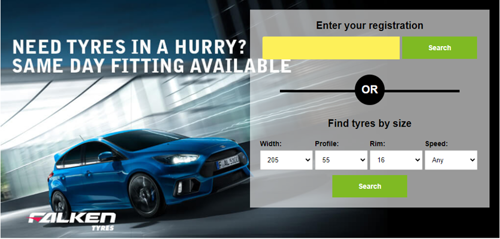
Use this script to add it to your website
NOTE: Make sure that when adding the domain in red, that you only add the domain with the leading www. and not with the https:// as this will break the search, also make sure that all punctuation is copied e.g. " ; etc as again if not the search won't work.
As an example the domain in red should look like this www.enteryourdomain.co.uk, (If you copy and paste your domain from a browser it will include https:// so make sure you check and remove this.
Script using a theme with Car and Bike Tyres Enabled
How it appears on your website
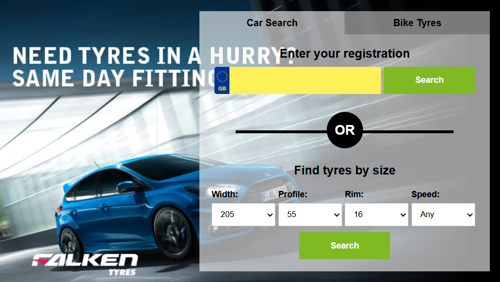
Use this Script to add it to your website
This looks the same as the standard search apart from the additional tabs for customers to switch between car and bike tyre searches:
Below is a list of preset themes (click on any of the links to view the image) - use the name in green to apply as the theme within the script - this is case sensitve and must be applied exactly as listed below.
falken - Same day text
falken#2 - Standard Text
fulda - No Text
fulda#2 - No Text
generaltire - Standard no text
generic - Unbranded standard text
samedayfitting - Unbranded same day text
gtradial - Standard text
gtradial#2 - Same day text
sumitomo - Standard text
sumitomo#2 - Same day text
toyo - Same day text
toyo#2 - Standard text
Should you wish to use custom backgrounds for car, bike or both you can replace the theme line with the carBackgroundImage - See below example for this:
Script using a custom background
You will see below that theme has been replaced with carBackgroundImage; this allows any image to be applied as a background. The link below in green is for a current customers website and must not be copied, this is only being used for demonstration purposes.
NOTE: When applying your own custom image it is recommended that the dimensions of this are 1250px (w) x 480px (h)
How it appears on your website:
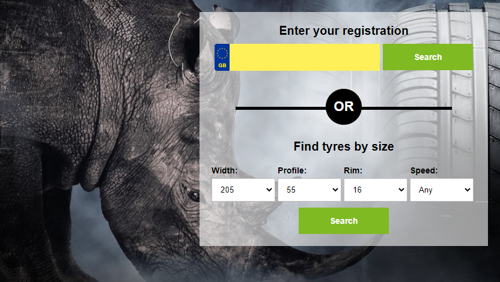
NOTE: This works the same for bikeBackgroundImage, just add an additonal line to the script under carBackgroundImage.
For Developers - Make Other Changes using CSS
The appearance of the search can be changed to fit in better with an existing website e.g. button colours, fonts etc.
To do this you can use the developer tools with a browser to inspect the code for the search widget.
Once you have found the element that needs changing a <style> tag can be added under the script.
Note: you may need to use !important to override certain elements.
In the example below, the colour of the Size search button has been changed to blue:
Should you or your developer require assistance with this, please contact the support team on 01625 433 388 or email support@silkmoth.com