Adding a tyre size lookup to your existing website is a great way for your customers to connect with and start the buying process on your new Tyres and Service website.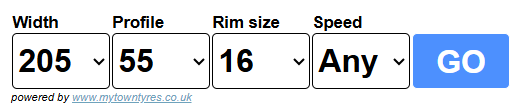
To add this great feature to your existing website all you need to do is to ask your web developer to add the following code snippet to your website.
src="https://assets.tyresandservice.co.uk/scripts/tyreclick/tyresize.js"></script>
Make sure you change the website address in red to your own Tyres and Service website's address otherwise you will be sending your customers to the wrong website!
Multiple Fitting Centres
If you manage multiple fitting centres, we provide a separate script that allows you to represent them all on a single tyre size search using a dropdown menu.
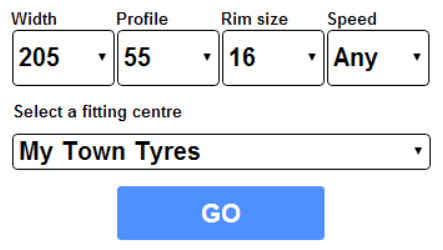
The snippet for this tyre size search is slightly different to the one above, as you need to provide details for each of the fitting centres you are representing.
For every fitting centre that you would like to add to the drop-down, you need to include the line of code that begins and ends with a curly brace "{ }". For example, the following line represents a singlefitting centre:
For each fitting centre, you need to supply 2 pieces of information:
The URL address of the website (shown in red above). This is the URL of the fitting centre you are currently adding. Please note you do not need to include the 'http://' that is sometimes added if the URL is copied and pasted from a browser address bar.
A name for the fitting centre (shown in blue above). This is the name that appears when a user opens the drop-down box to select a fitting centre.
Once you've added the code above, you should now be able to submit your search to a particular fitting centre, based on the option you've chosen from the drop-down.
For Developers - Make Other Changes using CSS
The appearance of the search can be changed to fit in better with an existing website e.g. button colours, fonts etc.
To do this you can use the developer tools with a browser to inspect the code for the search widget.
Once you have found the element that needs changing a <style> tag can be added under the script.
Note: you may need to use !important to override certain elements.
In the example below, the colour of the Search button has been changed to blue:
Should you or your developer require assistance with this, please contact the support team on 01625 433 388 or email support@silkmoth.com